NASA Logo, National Aeronautics and Space Administration

SSC 3D Orbit Viewer


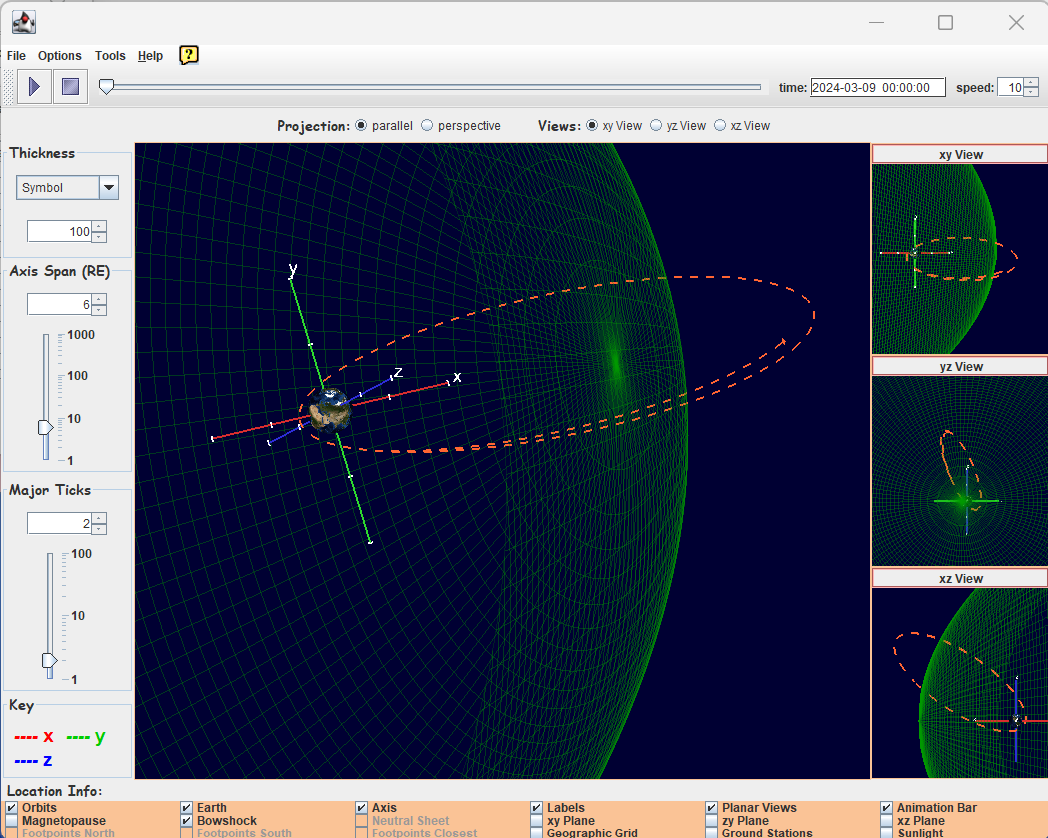
Application screen capture


Automated Use

This section utilizes advanced browser features on Microsoft Windows platforms to provide the most convenient method of accessing the application. On Microsoft Windows platforms, it will automatically attempt to determine if you have the required prerequiste software and then offers either a link to launch the application or a link to install the required software. Recent versions of other platforms (e.g., Mac OS X 10.4 and Solaris 10) have the prerequiste software included. Linux users and users of other platforms must ensure that they have the necessary prerequiste software installed and configured correctly.


Automated Use Troubleshooting

The following provides information about troubleshooting some of the more commonly encountered problems with the Automated Use procedure.

Symptom Cause Resolution
When you click on the Launch Application button, you see a dialog window indicating that your browser doesn't know what to do with a file of type application/x-java-jnlp-file. You are using a platform other than Microsoft® Windows.  Although the application is supported on other platforms, the automated Java install procedure is only supported on Microsoft® Windows and IE platforms. Perform a Manual Installation of the prerequiste software. Be certain to complete the procedure for configuring your browser to support JavaTM Web Start (this is an extra step on some platforms and browsers). Then return to this page and you should see a Launch Application button that will launch the application.
You are using Microsoft® Windows and IE but have ActiveX, JavaScript, or VisualBasic disabled. Enable ActiveX, JavaScript, and VisualBasic or perform a Manual Installation and Manual Launch of the application.
You don't see either a Launch Application button or a Download/Install button. You have JavaScript disabled. Enable JavaScript or perform a Manual Installation and Manual Launch of the application.
Installation of the prerequisite software fails indicating that you don't have sufficient privileges to install the software. Installation of the prerequisite software requires administrative privileges on Microsoft® Windows 2000/XP and Apple Mac OS X. Log into the computer with an identity which has administrative privileges or enter the administrative password when prompted. If this is not possible, have the computer's system administrator perform the installation. Unix users can usually acquire most of the prerequisite software in a form that can be installed for an individual user without administrative privileges.


Manual Installation

This section provides instructions for manually installing the prerequisite software required to run the application.  You only need to read this section if the Automated Use procedure above will not work for your platform or if you prefer to do a manual installation.

You must have the following software installed on your system before attempting to use the client:

To install the prerequisite software, follow these instructions:

  1. Open these instructions in a pop-up window (and position the window so it won't be covered by the main window). Do not close either of these windows until you have completed the entire installation procedure.
  2. Follow the instructions in the pop-up window.
  3. When finished, return to this page and attempt to use the link provided in the Automated Use section above to launch the application.

Manual Launch

To run this application, you must ensure that the prerequisite software is installed.  Refer to the Manual Installation procedures. If you have the prerequisite software installed but the Automated Use procedure above failed to provide a functioning link to launch it, the following link can be used to download/launch the application:

Uninstall

The following describes how to uninstall this application and all prerequisite software.

If you originally followed the Manual Installation procedures, then you should refer to the uninstall procedures that accompanied each product (e.g., graphics device drivers, OpenGL, Java 3D, etc.) and follow those instructions.

The 3D Orbit Viewer application can be uninstalled in one of two ways depending upon the platform and version of Java you are using. The two methods are described below.

If you did not have Java before visiting this page and now wish to uninstall it, it may be removed by using the Windows Add/Remove Programs control panel.


Feedback

Comments and questions about this application are welcome. Please use this e-mail address to send your comments, question, or problem reports.


NASA Logo - nasa.gov